
Quick answer: install a player app on your device, enter the login details from your TeveUK welcome email (Xtream Codes, an M3U link or MAC address activation) and let the channel list load. That is the whole IPTV setup guide in one line; the steps below explain each part.
What you need before you start
- Your TeveUK login details. These arrive by email once your order is confirmed, usually within minutes.
- A compatible device: a Smart TV, Firestick, Android TV device, Apple TV, phone, tablet or computer.
- A stable broadband connection. Around 10 Mbps per screen for HD and 25 Mbps for 4K. See our IPTV speed guide, and check what your line supports with Ofcom’s broadband checker.
- About ten minutes for your first device. Extra devices are quicker.
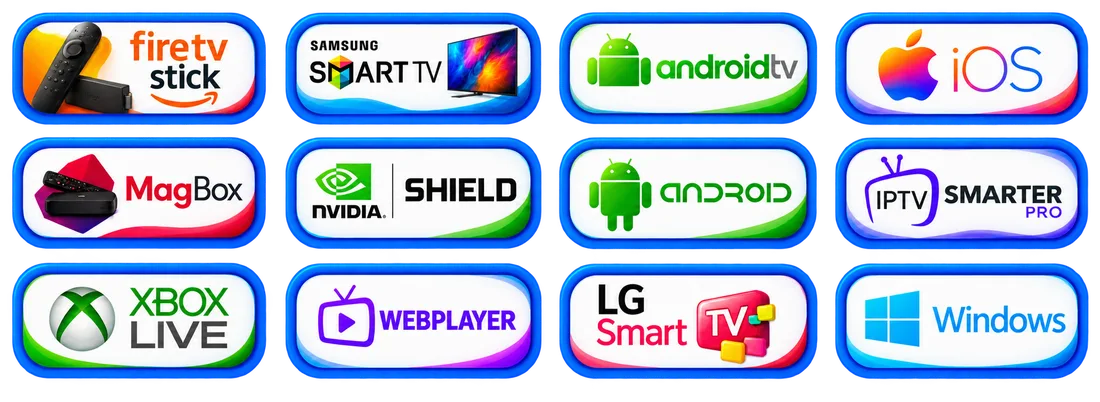
Choose your device guide
The steps differ slightly from one platform to another, so start with the guide for the screen you’ll watch on most:
Amazon Firestick & Fire TV
The most common choice in UK homes. Install from the Amazon Appstore or use the TeveUK premium app.
Samsung & LG Smart TV
Install IBO Player or HOT Player from the TV’s app store and activate it with its MAC address.
Android TV, Google TV & boxes
Sony, Philips, TCL and Hisense TVs, Nvidia Shield, Chromecast with Google TV and Formuler boxes.
Apple TV, iPhone & iPad
Use an IPTV player from the App Store that supports Xtream Codes or M3U.
On a Windows PC or Mac, install a desktop IPTV player such as VLC and follow the same login steps below.
Install a player app
IPTV works through a player app, which connects to your subscription and arranges channels, the programme guide and on-demand content. Every TeveUK plan includes:
- our premium app for Firestick and Android, and
- HOT Player or IBO Player, which work on many Smart TVs as well as Android devices.
You can also use popular third-party players such as IPTV Smarters. Our IPTV Smarters Pro setup guide covers it in detail. Only install apps from official app stores or from links we send you directly.
Enter your login details
IPTV players use one of three login methods. Your welcome email tells you which details to use, and most players support more than one:
Xtream Codes
You enter: server URL, username and password.
Common on: IPTV Smarters, most Firestick and Android players.
M3U playlist
You enter: a single playlist link.
Common on: Apple players, VLC and older apps.
MAC address
You enter: nothing. Send us the MAC address and device key the app shows.
Common on: IBO Player and HOT Player on Smart TVs.
Xtream Codes is usually the best choice where it’s available, because it loads the programme guide and on-demand library automatically.
Run your first-time checks
- Let it load. The first sign-in downloads your channel list and programme guide. This can take a minute or two.
- Try a few channels in different categories, plus something on demand, to confirm everything plays.
- Set your favourites so the channels you watch most are one click away.
- Check the picture settings in the player. Hardware decoding is usually smoothest.
Setting up more than one device
Once your first screen works, repeat steps 2 and 3 on each extra device with the same login details. You can install the app on as many devices as you like; your plan sets how many can stream at the same time. If the household regularly watches on more screens than your plan allows, a plan with more devices on our IPTV UK plans page avoids streams stopping.
IPTV setup guide: common mistakes to avoid
- Typos in login details. Usernames and passwords are case-sensitive. Copy them exactly, with no extra spaces.
- Missing part of the server URL. Include everything shown in your email, including
http://and any port number after a colon. - Wrong date and time on the device. Some apps fail to connect if the device clock is wrong. Set it to update automatically.
- Too many screens at once. Your plan sets how many devices can stream simultaneously. Extra screens may stop playing.
Playback stuttering after setup? Work through our IPTV buffering fixes.
Need a hand with setup?
Our team can talk you through setup on WhatsApp, 24/7. Tell us your device and the app you’re using and we’ll send the exact steps.
IPTV setup guide: frequently asked questions
How long does IPTV setup take?
Usually around ten minutes for your first device, including installing the app. Additional devices are quicker because you already have your login details to hand.
Which login method should I use?
Use Xtream Codes (server URL, username and password) where your player supports it, as it loads the programme guide and on-demand content automatically. Use the M3U link or MAC address activation if your player requires it.
What is an M3U link?
An M3U link is a single web address that contains your whole channel list. Players such as VLC and many Apple apps accept it in place of a username and password.
Why does my app say my login is invalid?
Check the details character by character: usernames and passwords are case-sensitive, and the server URL must include http:// and any port number. Also make sure the device date and time are set automatically.
Can I set up TeveUK on more than one device?
Yes. You can install the app on as many devices as you like. Your plan controls how many can stream at the same time: 1, 2, 3 or 4.
Can I watch on a Windows PC or Mac?
Yes. Install a desktop IPTV player, such as VLC with your M3U link, and sign in with the details from your welcome email.
My device isn’t listed. Will it work?
Most devices that can install an IPTV player app will work. Message our team with the make and model and we will confirm before you buy.